How the Internet Changed Communication
Not very long ago, sending news to a relative far away meant writing a letter and posting it. A letter could take weeks to arrive. Offices sent documents by fax. To read the news you waited for the morning newspaper, and to watch a programme you had to sit in front of the TV at the exact time it was broadcast.
With the growth of computers, smartphones and the internet, the way we do each of these jobs has changed. A single mobile phone can now do the job of a letter through email, the job of a telephone through an internet call, the job of a newspaper through online news, and the job of a television through internet TV. This is why the internet is called a modern communication tool. The table below puts the old way and the new way side by side.
| Communication task | The old way | The way today | Tool used |
| Sending a letter or notice | Post, fax | Sending an email | Gmail |
| Talking to someone | Telephone, mobile call | Audio or video internet call | Social networks, Messenger |
| Reading the news | Printed newspaper | Online news | News websites |
| Watching programmes | Cable TV | Internet TV | IPTV |
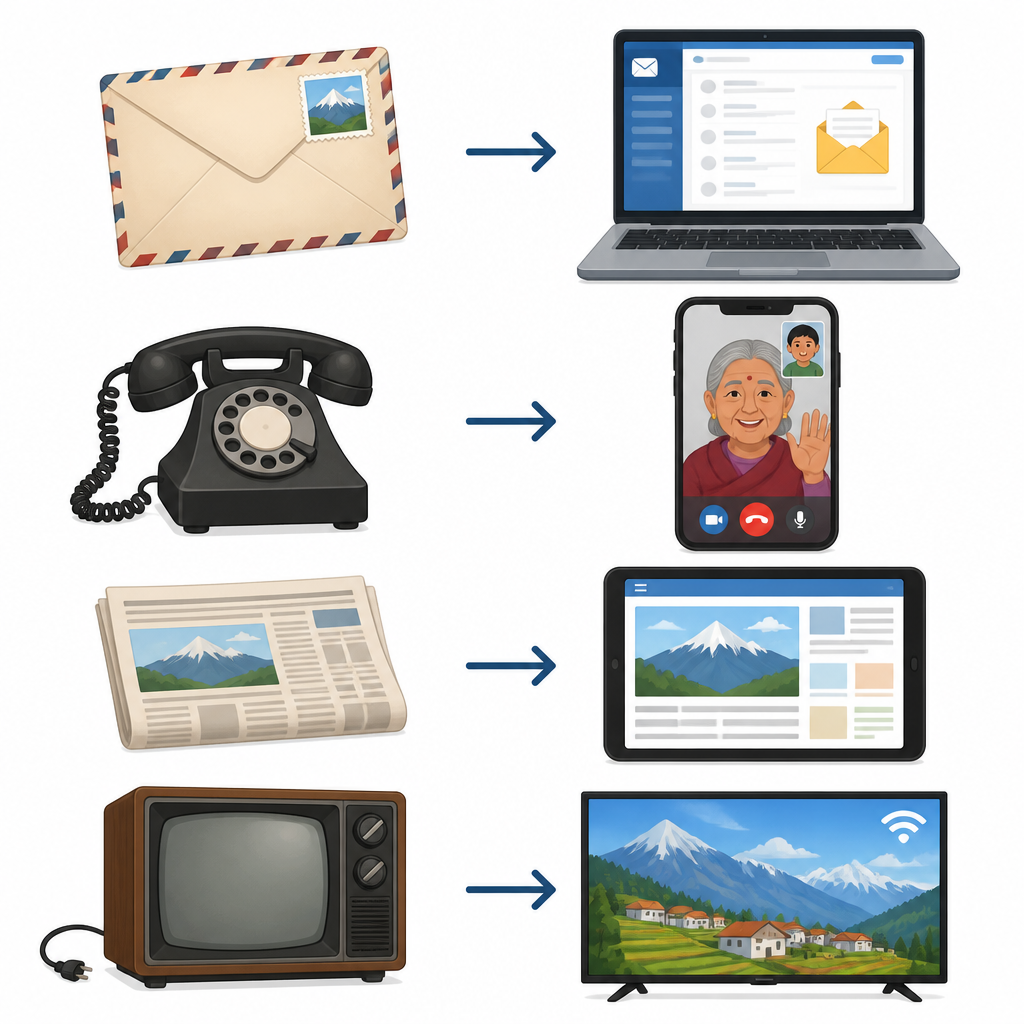
Email, Internet Calls and Internet TV
Email (electronic mail): a written message, photo or file that one person sends to another over the internet, like a letter that travels electronically.
Communication by email is fast and reliable. An email sent from Pokhara reaches not only Kathmandu but a brother living in America within seconds. A letter can be lost on the way, but after an email is sent a copy stays in your own account, so you can check later exactly what you sent. Documents that used to go by fax are now attached to an email as files.
Audio or video internet call: a conversation carried over the internet instead of the ordinary telephone network, using voice alone or voice together with live video.
The big advantage of an internet call is its cost. An international call from a mobile phone to a relative abroad is expensive, but an online call over the internet is very cheap. In a video call the two people also see each other's faces, so a grandmother can see a grandchild born abroad without leaving home.
Online news: news published on the internet instead of on paper, which can reach readers as soon as an event happens.
A printed newspaper takes a day to be printed and delivered. But if an earthquake strikes somewhere, or Nepal scores a goal in a match, online news carries it within minutes. That is why many people now prefer online news to a printed paper.
IPTV (Internet Protocol Television): a way of delivering television programmes over the internet instead of through a cable TV connection.
Pictures and sound delivered by IPTV are of high quality, and many IPTV services let you go back and watch a programme you missed. Email, internet calls, online news and IPTV are all examples of the internet being used as modern technology for communication.
Creating a Gmail Account
To send and receive email you first need an email account of your own. Gmail is a free email service run by Google. Once you create a Gmail account you get your own email ID, for example [email protected]. These are the steps for creating a Gmail account on a computer:
- Step 1: Double-click the browser icon on the computer screen, for example Chrome, to open it. Click in its search bar and type www.gmail.com.
- Step 2: In the window that opens, click create an account.
- Step 3: In the new window, fill in every box it asks for, such as your name, a Username and a Password. You will need the Username and Password every time you open your mail, so choose ones you can remember. Then click Next.
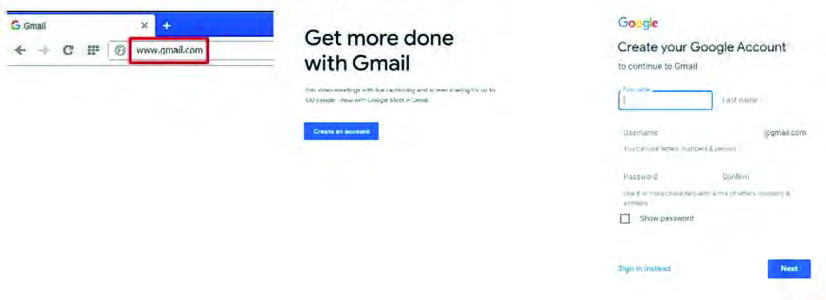
Many students type a Password in a hurry while creating the account and forget it the next day. Choose a Password you can remember but others cannot guess, and do not tell it to your friends.
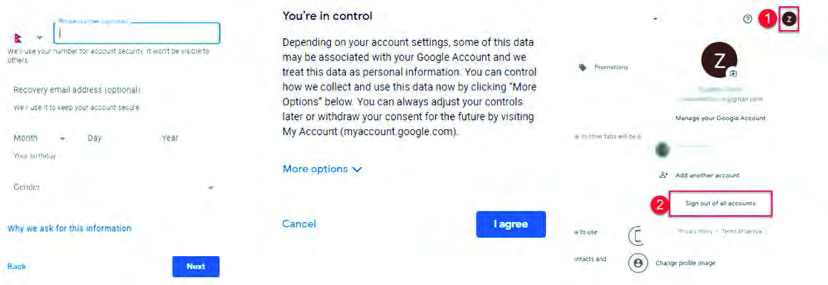
The next step finishes the account:
- Step 4: Fill in the details the window asks for, including a phone number, and press Next. Gmail's terms and conditions then appear. Scroll down the screen and click I agree near the bottom. Your Gmail account is now ready.
Signing Out, Signing In and Sending an Email
Once the account exists you need to know how to leave it and how to get back in. Computers at school or in a cyber café are used by many people, so if you do not sign out when you finish, the next person can read your mail.
- Step 5: To leave your account you sign out. Click the small circle at the top right corner of the screen, then click Sign out in the little window that appears.
- Step 6: To send mail, first open Gmail and sign in. Type your email ID (something like [email protected]) and click Next. Then type your password and click Sign in. Your email window opens.
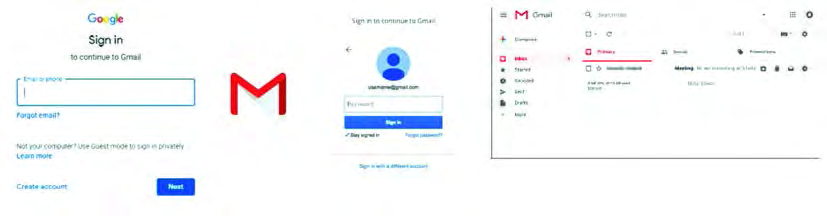
Now you can send mail to a friend and read what your friend sends back:
- Step 7: Click Compose at the top left of the Gmail window. A small window opens. Type your friend's email address (it may end in @gmail.com or @yahoo.com), a subject, and your message. Then click the Send button.
- Step 8: To see mail your friend has sent, click Inbox just below Compose. Click your friend's mail in the list to open and read it.
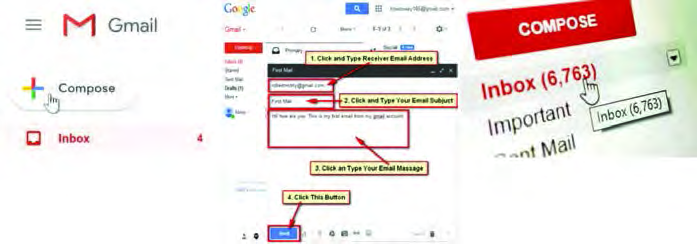
An email needs the receiver's full and correct address. The part before the @ sign is the person's name and the part after it is the company giving the service. One wrong letter sends the mail somewhere else or bounces it back.
Search Engines and Search Operators
The internet is not only for communication. It is also a huge store of study material. But it holds billions of pages, and the job of finding the ones you need is done by a search engine.
Search engine: a software system that picks out, from the information stored on web pages across the internet, the pages that contain what the user is looking for, and displays a list of them. Google (google.com.np) and Bing (www.bing.com) are examples.
Typing only firewall into the search box brings up millions of results, most of them useless for your homework. To make a search sharper you add special words or symbols to it. These are called search operators.
Search operator: a special word or symbol written alongside your search words to tell the search engine exactly what kind of result you want.
| Search operator | What it finds | Example |
| site: | Material published on one particular website only | site:moecdc.gov.np |
| inurl: | Pages whose link itself contains the word | inurl:firewall |
| *: | Websites containing the searched word | *:firewall |
| or | Pages with the first word, the second word, or both | inurl:firewall or antivirus |
| and | Pages with both the first and the second word | inurl:firewall and antivirus |
| - | About only one of two words that often come together | inurl:firewall -antivirus |
| " " | Pages with the exact words in exactly that order | "cyber bullying in nepal" |
| filetype: | A particular kind of file, such as a Word file (docx), PowerPoint (pptx) or PDF (pdf) | cyber bullying in nepal filetype:docx |
| map: | Websites with a map of the place | map:rara lake |
| weather: | Weather information for the place | weather:bidur |
Suppose you need an official PDF of the science curriculum. Searching site:moecdc.gov.np filetype:pdf science shows only PDF files on the Curriculum Development Centre's website. A refined search like this brings up only material related to what you need, so you reach your target in less time. It also becomes easier to separate authoritative material, and material that is or is not protected by copyright.
Do not leave a space after the colon in operators like site: and filetype:. Writing site: moecdc.gov.np stops the operator working; write site:moecdc.gov.np. The minus sign also goes directly against the word you want to remove.
How to Recognise Authoritative Material
Anyone can write anything on the internet, so not everything a search turns up is correct. Material you use for study should be authoritative, meaning it comes from a reliable, responsible source.
Authoritative material: reliable material prepared and verified by a recognised educational institution, a government body or another responsible organisation.
You can judge whether material is authoritative by looking at these things:
- Who put it there: material that an educational institution or other official body keeps in its own e-library, such as lib.moecdc.gov.np, has been checked before being placed there.
- How the website address ends: websites ending in .edu, .gov, .org or .com are run by organisations, so material published on them is usually authoritative.
- The date: when the material was published. Very old information may no longer be true.
- Revision: whether the material has been revised and updated since.
- Readers' response: the comments and feedback readers have left give a hint of how trustworthy the material is.
For example, if a search on photosynthesis turns up a personal blog and a university site ending in .edu, the university page deserves more trust, especially if it shows a date and the writer's name clearly.
Copyright and Naming the Source
Copyright: the legal right that the creator of a piece of writing, a picture, a book or other work holds over it. Copyrighted material may not be used elsewhere without permission.
If study material found on the internet is copyrighted, you may not use it anywhere else. Books on Google Books (books.google.com.np), for example, are under copyright: you may read them there and nothing more. If pictures or sentences from such a book are used elsewhere, the copyright owner can file a case of theft and the user can be punished.
Some websites state that their material is free to use. Material published on PhET Simulations (https://phet.colorado.edu/), for example, is not restricted by copyright. Even so, when you use free material in your own presentation you must name where it came from. If you take a picture from a website, type the source under the picture with the website's name, for example: Source: phet.colorado.edu.
Being easy to find on the internet is not the same as being free to use. Unless a website says its material is free to use, treat it as copyrighted.
Three habits of a good search: use operators to find exactly what you need, check that it is authoritative, and look at its copyright and name the source before you use it.
The full lesson is waiting for you
The notes are free to read in full. A free account opens the rest of the practice, and tracks your progress and confidence score for every subject. Presentations and videos need approval from Learn Yeti.