What an ICT Tool Is
Information and communication technology means the tools of communication taken together as one working system. A radio, a television, a newspaper, a computer and a projector are all tools of this kind. What makes them one family is the work they do: they create information, display it, store it, transmit it and exchange it. No single tool has to do all five. A radio sends information out as sound only. A television shows information as picture and sound together. A computer can make information, keep it and send it on as well. Every part of life today is touched deeply by these tools, so information and communication technology has grown into a very broad subject.
Information and Communications Technology (ICT): the whole family of communication tools used to create information, display it, store it, transmit it and exchange it.
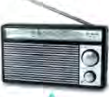
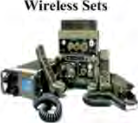

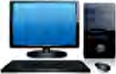

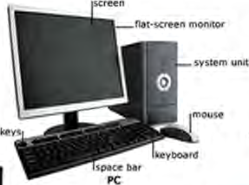
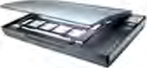
In profession after profession, network computing and communication tools have become necessary equipment rather than a luxury. Education, business, management and entertainment are the four fields where their use is growing fastest. A projector shows the lesson in a school, a computer keeps the accounts in a shop, a scanner turns a paper file into a computer file in an office. The tools shown below are the ICT tools that work alongside a computer.

ICT Tools in Daily Life
These tools are easiest to hold in mind when the name is remembered along with the job. The table below sets each tool beside the work it does in an ordinary day.
| ICT tool | Use in daily life |
| Computer | To use the internet and to store data |
| ATM | To take cash out of a bank account and to deposit cash |
| Photocopy machine | To make copies of documents |
| Scanner | To turn a printed document into a computer file |
| Printer | To print a document held in the computer onto paper |
| Router | To join the machines of a house or office to a network |
| Wi-Fi | To use the internet without any wire |
| Set-top box | To watch television channels |
The ATM (Automatic Teller Machine)
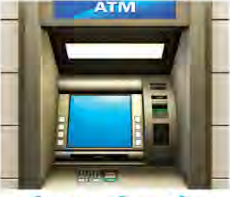
ATM is short for Automatic Teller Machine. It is an electromechanical machine that provides automated banking services. Its value is that a customer can complete a transaction without the help of a branch office, an agent or a teller standing at a counter. Using a debit card or a credit card, a person can draw cash and carry out other banking work at an ATM. The services are fast, simple and automatic: withdrawing cash, depositing cash, paying a bill, and transferring money from one account to another.
The Basic Parts of an ATM
The main parts of an ATM are its input devices and its output devices. An input device takes something from the user, and an output device gives something back from the machine to the user. Working as a pair, these two kinds of part are what let a customer deposit or withdraw cash without help.
Card reader: the part that recognises the data stored on the magnetic stripe of the ATM card. It sits at the back of the machine, gathers the details of the account and sends them to the server.
Keypad: the set of number keys through which the user gives the machine the data it asks for, such as the Personal Identification Number (PIN), the amount of cash wanted, and whether a receipt is needed or not.
Once the card has been pushed into its slot, the machine works on the instructions that come back from the server. It shows the account information, and the cash dispenser is given permission to hand out money. The four output devices are described below.
Speaker: the part that makes a sound each time a button is pressed, so the user knows the press was accepted.
Display screen: the screen that shows the details while a transaction is going on. It takes the user through the steps of a cash withdrawal one step at a time.
Bill printer: the part that prints a receipt carrying the date and time of the transaction, the amount taken out and the balance left in the account.
Cash dispenser: the most important output device of an ATM, because it is what brings the money held inside the machine out to the user. Very sensitive sensors inside the machine let the dispenser count out exactly the amount the user has asked for.
An ATM deposits cash, gives out cash, shows account details, shows the balance held in the account, and lets the user change the PIN code. The table below separates the input parts from the output parts at a glance.
| Part | Input or output | What it does |
| Card reader | Input | Reads the data on the magnetic stripe of the card |
| Keypad | Input | Lets the user type the PIN and the amount |
| Speaker | Output | Makes a sound when a button is pressed |
| Display screen | Output | Shows the steps of the transaction |
| Bill printer | Output | Prints the receipt for the transaction |
| Cash dispenser | Output | Hands out the cash that was asked for |
Keep the ATM card and the PIN number safe, and never give either of them to anybody. Change the PIN number from time to time.
The Photocopy Machine
A photocopy machine makes copies of documents. Most photocopiers work by a technology called xerography, and because xerography was used so widely, making a copy was informally called xeroxing for many years. Xerography is a dry process. It uses light falling on a sensitive photoreceptor, where the image is held as an electrostatic charge. To do its work a photocopy machine needs light, heat, pressure, chemicals or an electrostatic charge.
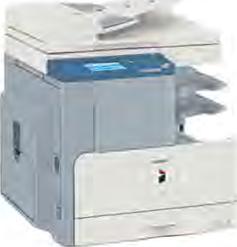
Because a photocopier produces copies of graphic material, it is used widely in business, in education and in government offices. A modern photocopy machine has a scanner, a printer and a computer network joined to it as well. One machine can therefore take copies, scan a document and print from a computer.
How to Use a Photocopy Machine
Taking a copy is a job of six steps done in order. Skip one step and the machine will not give a copy.
- Step 1: Switch the machine on. First make sure the plug is joined to a nearby power outlet, then press the button that switches the machine on. On most photocopiers the power button is on the top, though on some machines the switch is at the side. If the machine gives no response when the button is pressed, it may be in sleeping mode. After that, check whether there is paper in the paper tray, which is usually at the front or the side of the machine. If the tray is empty, load more paper.
- Step 2: Place the document in the copier. Lift the cover, which is the top part of the machine, and lay the document on the glass surface with the written side facing downwards. Guide marks on the glass show where the edges of the paper should sit. Close the cover once the document is in place.
- Step 3: Choose how many copies are needed. The machine has a digital number display and a set of plus and minus signs which change the number of copies. Some models of photocopier have number keys given for the same purpose.
- Step 4: Choose the colour. Decide whether the copies are to be plain or in colour. Colour buttons on the machine set this, and on some machines it is set by following the instructions that appear on the computer screen. Some machines make plain copies only, and a colour copy cannot be taken from a machine of that kind.
- Step 5: Choose the paper size. After the colour has been set, the paper size must be chosen. For ordinary photocopying we generally use A4 size paper, whose size is \( 8.5 \times 11 \) inches.
- Step 6: Press the copy button. This is the last step. Once the copy button is pressed, the machine starts printing the copies of the document.
The Scanner
A scanner is an input device used to digitize a picture or a piece of text printed on paper so that it can be stored in a computer. Some photocopy machines give the facility of a scanner as well. A scanner turns a hard copy into a soft copy. It works by taking a photograph of the source: a photographic print, a poster, the page of a magazine, or anything else needed for editing and display on a computer.
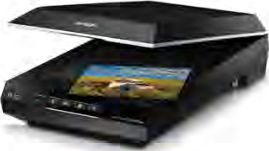
A scanner works by changing the pictures or photographs on a document into digital form. It does this through Optical Character Recognition (OCR) technology. The process is carried out by a scanning head, which uses one or more sensors to capture the letters or the photograph as light or as an electrical charge.
Optical Character Recognition (OCR): the technology that recognises printed letters by means of light and turns them into letters a computer can edit.
Hard copy and soft copy: a hard copy is the form printed on paper, and a soft copy is the same material held as a file in a computer.
Most scanners are flatbed devices, which means they have a flat scanning surface. A wide sheet can be scanned easily on such a bed. A scanner is usually joined to a computer system and works with scanning software, which resizes a photograph and lets the captured image be altered. If a printer is joined to the computer, a hard copy of the scanned image can be printed. The image can also be stored in digital form. Nowadays the work of a scanner can be done on a mobile phone as well, using an app.
Getting the scanner and the printer the wrong way round is the commonest slip here. A scanner turns a hard copy into a soft copy, so it is an input device. A printer turns a soft copy into a hard copy, so it is an output device.
The Printer
A printer takes the electronic data stored in a computer or another device and produces a hard copy of it. Because it prints onto paper the documents that a computer holds in digital form, a printer is also called a hardcopy output device. Of all the external devices of a computer, the printer is the most popular one, and it is used to print both text material and photographs.
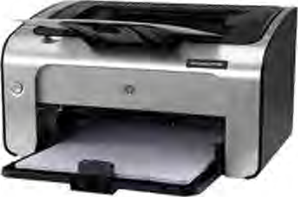
Printers of many kinds and capacities are available for different purposes. Some printers print only in black, which is called plain printing, while others print in several colours. The speed of a printer is measured in characters per second (CPS), lines per minute (LPM) and pages per minute (PPM). Different printers use different methods of printing.
How to Use a Printer
- Step 1: Before using the printer, make sure it is joined to a power source. Connect it to the power first of all.
- Step 2: Join the printer to your Personal Computer (PC). Most printers today offer a choice of connections: a Universal Serial Bus (USB) cable, wireless Bluetooth, or the CD that comes with the printer itself.
- Step 3: Open the file that is to be printed, and put the page numbers into the file.
- Step 4: Go to the File menu and press the print option.
- Step 5: Select the printer.
- Step 6: Select the page numbers that are to be printed.
- Step 7: Click the print menu at the right side of the icon box.
The Router
A router is a network joining device, which helps to join different networks together, whether they are wired or wireless. A router helps to send data from one network on to another place. It works on the principle of the Internet Protocol address. DSL routers and optical fibre routers are the ones most commonly seen in the market today. Routers are mainly of two kinds, wired and wireless.

What a Router Is Used For
- (a) A router is used to join hardware devices and other servers to a network in a distant place.
- (b) It exchanges data at high speed, so it is used in both wired and wireless communication.
- (c) Internet service providers make wide use of routers to send data from its source to its destination as email, as a web page, or as a voice or video file. With the help of the destination IP address, a router can send data anywhere in the world.
- (d) A Virtual Private Network (VPN) can be configured on a wireless router so that it works in a client server model, which allows the internet, video, data, voice and hardware resources to be shared.
Wi-Fi
Wi-Fi is the short form of wireless fidelity. It is a kind of wireless networking system. In Wi-Fi the contact between devices is established through radio waves. Using it, any device that has Wi-Fi in it can be joined to the internet, and information, digital documents, photographs and video can then be exchanged. Wi-Fi is a popular wireless networking technology. It was invented by NCR Corporation in the Netherlands in 1991. With this technology we can exchange information or data between two or more machines.
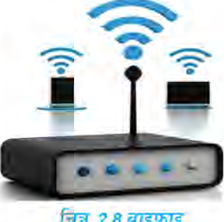
Wi-Fi was developed for computing devices such as computers and laptops, but today it is used just as widely in electronic devices like mobile phones, televisions and digital cameras. Wi-Fi is generally called a wireless Local Area Network (LAN), because it allows a local area network to work without any wire. For that reason it grows more popular every day in homes and in business.
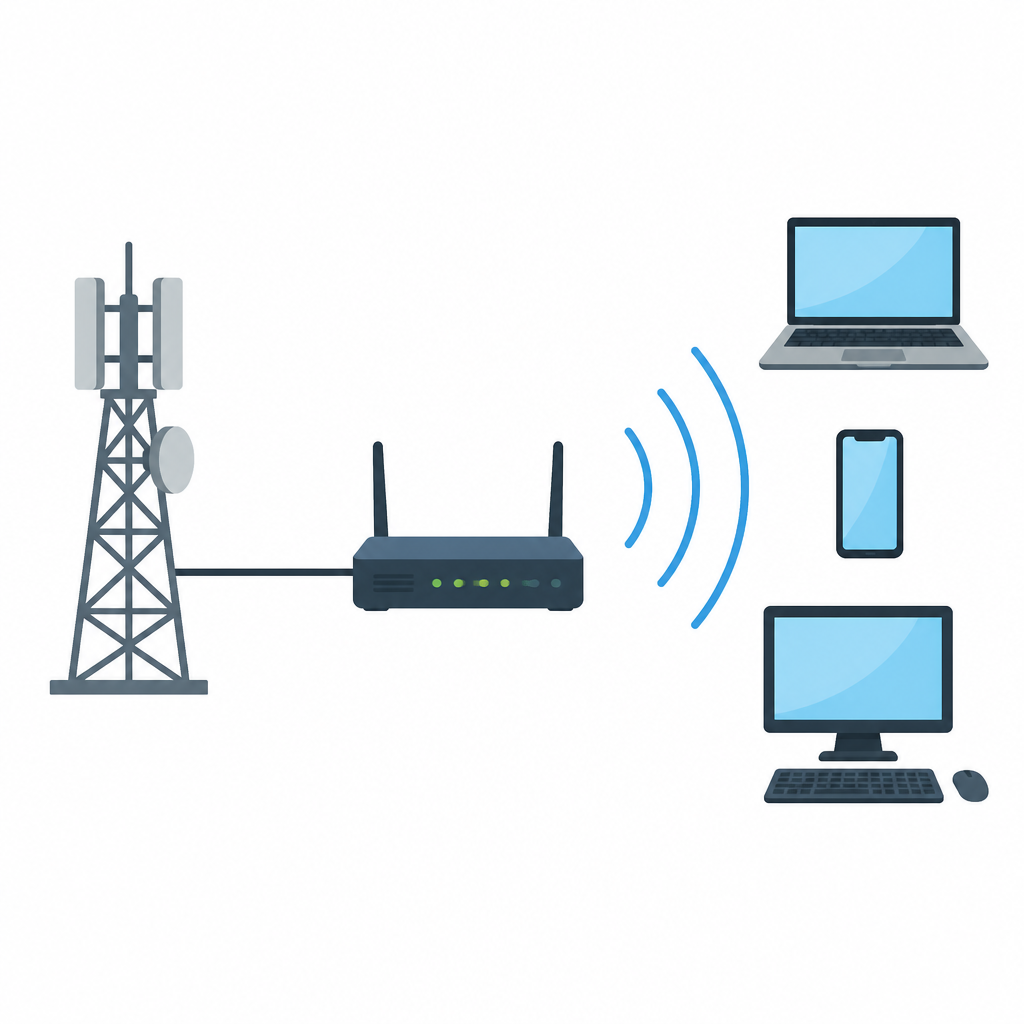
There are three parts through which a Wi-Fi signal travels, and they are as follows.
- (a) The base station network or ethernet connection: this is the main host network, from which the network is joined to the router. It is what brings the network signal as far as our house.
- (b) The access point or router: this is the bridge between the wired network and the wireless network. It accepts the wired ethernet connection and changes that wired connection into a wireless one, spreading the signal around as radio waves.
- (c) The devices: these are the machines we use, such as mobile phones and computers, with whose help we use the internet wirelessly.
The Set-Top Box
A set-top box (STB) is a device that receives a digital signal, decodes it, and displays television channels. It is a piece of hardware. The signal that reaches a set-top box may be a television signal or an internet data signal, and it can be received through a cable, through optical fibre, or through a telephone connection.
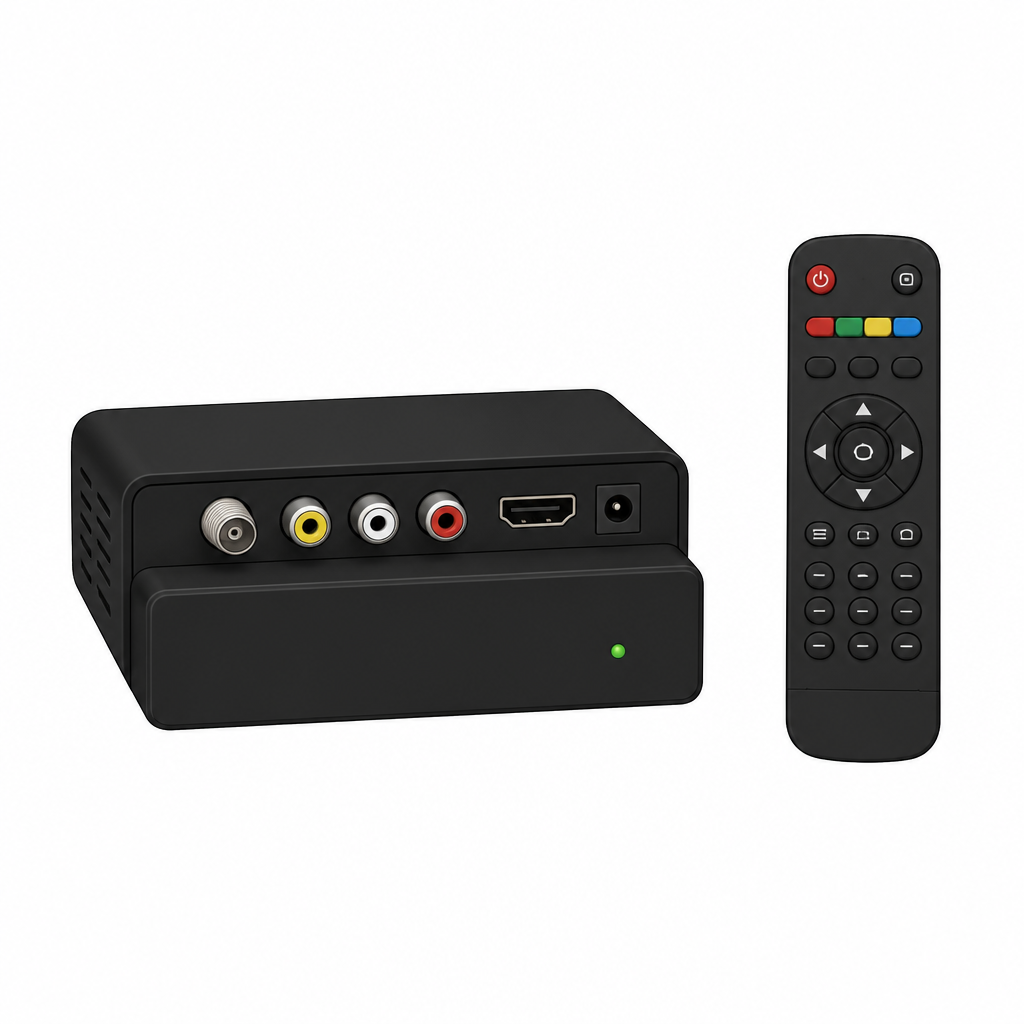
A set-top box lets the user watch the various programmes that come from a service provider through the internet. It changes the television signal into audio visual material, which can then be displayed on a monitor, captured and recorded. In the past a set-top box was used mainly for cable and satellite television only. Today the set-top boxes given out by internet companies carry the facility of the internet as well.
An ATM does banking work, a photocopy machine makes copies, a scanner turns paper into a file, a printer turns a file into paper, a router joins networks, Wi-Fi joins them without wire, and a set-top box turns a signal into channels. Remember the one main job of each tool and telling them apart becomes easy.
The full lesson is waiting for you
The notes are free to read in full. A free account opens the rest of the practice, and tracks your progress and confidence score for every subject. Presentations and videos need approval from Learn Yeti.