Ways and Tools That Make Work Easier
From the time we get up in the morning until we go to bed, we do a great many jobs. We cook food, carry water, wash clothes and work in the fields. If we tried to do all of this with our bare hands, every job would take a long time and a great deal of strength. So for each job people have worked out a way of doing it, and they have made tools that follow that way. A sickle cuts grass, a kitchen blade cuts vegetables, a grinding stone crushes spices, an axe splits firewood, a plough turns the soil and a rolling pin flattens bread on a board.
Technology: the way a job is done, together with the tools that are used to do it.
Why do we need technology? To get a job done faster, to make it easier, and to finish it using less effort.
Technology does not have to mean a big machine that runs on electricity. A stone grinder is technology and so is an electric mixer. Both of them crush spices. The difference is that a stone grinder is made from traditional skill, while a mixer is made from scientific knowledge. On this basis technology is divided into two kinds, local technology and modern technology.
Local Technology
Many of the tools our grandparents used are still found in houses today. A grinding stone, a plough, a hoe, a spade, an axe, a sickle, a kitchen blade and a carrying basket with its head strap are all tools of this kind. No large factory is needed to make them or to use them. The village blacksmith heats iron and shapes a hoe or a sickle, a plough is made from local timber and a carrying basket is woven from bamboo.
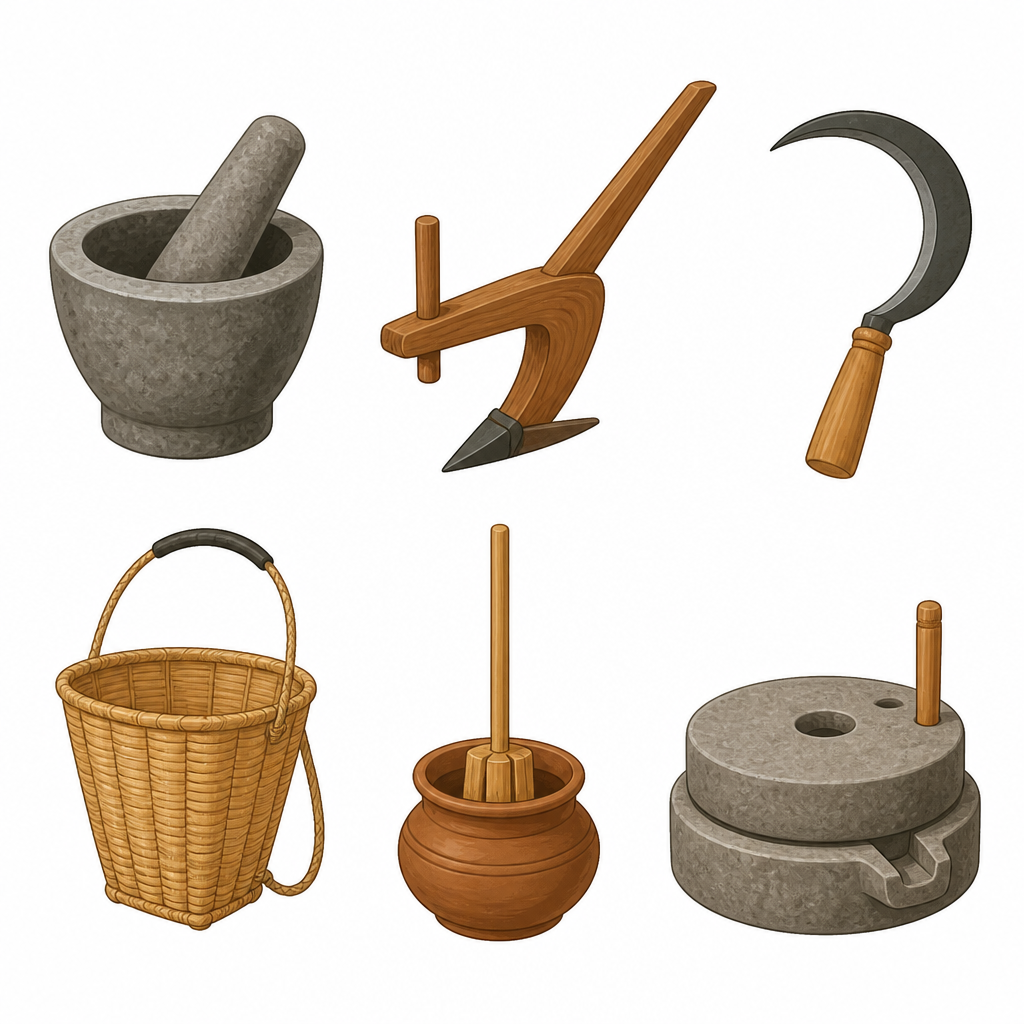
Local technology: the traditional knowledge and skill used to make our work faster, easier and more comfortable, together with the tools built from that knowledge and skill.
Local technology grew out of people's traditional knowledge and skill. Its build is simple, so when it breaks it can be repaired in the village itself. Nepal is rich in traditional skill and technology. Because the country is varied in its land and in its communities, the technology developed locally is varied too. Local technology is used in farming and animal keeping, in making food and drinks, in producing thread and cloth, in producing energy, in managing water, in building design and in construction work.
A sickle, a kitchen blade, an axe and a khukuri are sharp. Always cut with the edge turned away from your body, never carry one with the edge pointing towards another person, and put it out of the reach of small children when you have finished.
Local Tools in Your Own Home
Ask your parents, your relatives and your neighbours, then build a table like the one below and discuss in class which tool is used for which job.
| Name of the tool | Use of the tool |
| Doko and namlo, a bamboo basket with a head strap | Carrying grass, firewood and goods. Where there is no motor road, sometimes even to carry a sick person. |
| Khal and dhiki, a mortar and a foot lever pounder | Pounding paddy to get rice. |
| Jaato, a hand mill of two round stones | Grinding wheat, maize, millet and buckwheat into flour. |
| Madani and theki, a wooden churner and its pot | Churning curd to separate buttermilk and butter. |
| Clay pots | Storing water or grain, and keeping water cool in the hot season. |
| Diyo and tuki, small oil lamps | Giving light at night. |
| Water mill | Grinding grain using the force of flowing water. |
Modern Technology
As science has developed, modern technology has grown up on the base of traditional technology. A room heater or an air conditioner is used to warm a room or an office. A refrigerator is used to keep vegetables and fruit fresh. A smart phone and a computer are used for information and communication. A scooter, a car, a jeep, a bus, a train and an aeroplane are used for travel.
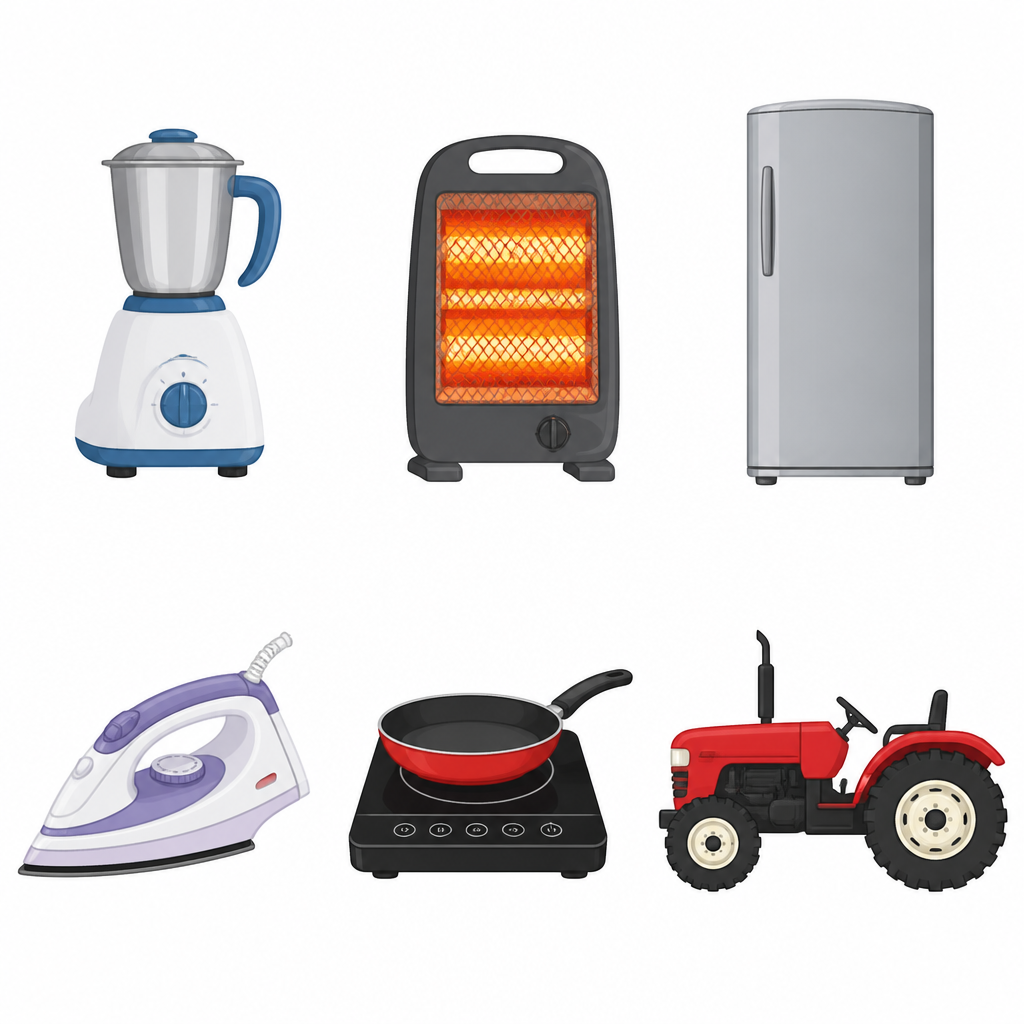
Modern technology: tools of complex build that are made and used through scientific knowledge and skill, together with the way those tools are used.
With modern technology, work is done quickly, the goods are of even quality and a large amount can be produced at one time. Some tools of this technology are driven by mechanical power and some are driven by electric power. Look around your house and your neighbourhood, see what jobs modern technology is doing, and complete a table like the one below.
| Name of the tool | Use of the tool |
| Electric iron | Pressing clothes. |
| Tractor | Ploughing fields and carrying loads. |
| Mixer | Grinding spices and pulses. |
| Refrigerator | Keeping food fresh. |
| Induction stove | Cooking food. |
| Smart phone | Talking to people and exchanging information. |
Both Technologies in Farming and Milling
The same job can be done by local technology and by modern technology. A hoe, a spade and a plough used to dig and turn a field are local technology, while a tractor, a threshing machine and a grass cutting machine are modern technology. In the same way a foot lever pounder, a hand mill, a wooden mortar, a water mill and an oil press are traditional technology used in husking and grinding, while a rice mill, a flour mill and an oil mill are modern technology.
Look at the journey from a hand mill to a water mill, and from a water mill to today's electric mill, and one thing becomes clear. Local skill and technology have been in use for a very long time. Modern technology grew out of that same technology as it was developed and brought up to date. Computers are now used very heavily in modern technology, and many kinds of automatic machines have been built with their help.
| Job | Local technology | Modern technology |
| Making bread | Rolling pin and board | Bread maker |
| Husking paddy | Mortar and foot lever pounder | Rice mill |
| Making flour | Hand mill, water mill | Modern flour mill |
| Ploughing a field | Plough, spade | Tractor |
| Warming a room | Traditional mud stove | Room heater |
| Pressing clothes | Charcoal iron | Electric iron |
| Churning curd for butter | Wooden churner and pot | Electric cream separator |
| Keeping water cool in summer | Clay pot | Refrigerator |
| Crossing a river | Rope crossing, wooden boat | Concrete bridge, motorboat |
| Taking a patient to hospital | Carrying basket, wooden stretcher | Ambulance |
| Sending news from place to place | Postal runner, town crier | Mobile phone, email |
| Grinding spices | Grinding stone | Mixer |
Comparing Local and Modern Technology
Both technologies get the job done, but they differ in how they are built, in the power needed to run them and in their speed. Study the comparison given below.
| Basis | Local technology | Modern technology |
| Build | Simple in build | Complex in build |
| Source of knowledge | Traditional knowledge and skill | Scientific knowledge and skill |
| Driving power | Mostly human and animal effort | Mostly mechanical or electric power |
| Speed of work | Slow, a small amount at a time | Fast, a large amount at a time |
| Repair | Can be repaired easily in the village | Needs a trained person and spare parts |
| Examples | Sickle, kitchen blade, knife, khukuri, grinding stone, wooden mortar, plough, hoe, spade, axe | Heater, induction stove, refrigerator, spice mixer, mobile phone, computer |
Modern technology finishes a job faster, more neatly, more easily and at less cost than local technology. Modern technology is used more in the towns, while in most places in Nepal local technology is still used in everyday work.
Using a Smart Phone in Daily Life
In today's world a mobile phone and a computer are nothing new. They are used more and more in education, in health, in security, in entertainment and in business. Because of these tools the whole world has come to feel like one small village.
Until a few years ago a mobile phone was used only as a means of passing on information. Apart from a keypad on the outside, a speaker and a torch light, the phones of that time had very few other facilities. As technology developed and as needs grew, the smart phone appeared with a camera, internet and many other facilities. Many kinds of programs were added to the smart phone, and its use spread widely.
With a smart phone we talk to people, keep accounts, take photographs, record video, and read and send email. It can also be used to read and listen to the news and to run programs like Facebook, Messenger, Viber, IMO and WhatsApp. It is used widely for online shopping and mobile banking as well.
Using a Computer in Daily Life
A computer can do a job quickly and in a way we can rely on. That is why computers are used widely at home, in schools, in offices, in banks, in hospitals, in security services, in entertainment and in the exchange of information. Today there is hardly a field where computers are not used. In education the use of computers is turning the traditional system into a modern one. The way of teaching and learning has changed, and learning also takes place online.
Home: keeping household accounts, sharing photos and documents, and for entertainment.
School: teaching, presentations and making student result files.
Office: making office documents, and reading and sending email.
Bank: keeping customer account records and carrying out transactions.
Hospital: keeping patient records and looking at test results.
Business: keeping stock records and preparing bills.
Things to Remember While Using a Smart Phone and a Computer
A smart phone and a computer are very useful tools. Even so, if they are not used in the right way they can do us harm. Working on a smart phone or a computer without a break can bring irritability, poor sleep, headache, dryness of the eyes, red eyes and a burning or aching feeling in them. For this reason it is good to rest for a while in between.
Do not use a smart phone while you are going to sleep, while you are eating, or while it is plugged in for charging. Working on a computer with a small screen, dim light or a small font size is not good. It affects our eyes. Looking at a screen for a long time has a bad effect on the physical and mental growth of children.
The Computer
The word computer comes from the Latin word computare. Its meaning is a machine that calculates. In the beginning it was known only as a calculating machine, but today it does far more than calculation.
Computer: an electronic machine that takes data and instructions from the user, processes that data with the help of the programs available in it, and gives back a useful result.
Components of a Computer
Hardware and software are the components of a computer. The parts we can touch and see, such as the keyboard, the mouse and the monitor, are hardware. Hardware cannot do anything by itself. It needs programs to tell it what to do. The collection of programs that instruct the hardware to work is called software. Windows operating system, Microsoft Word and a media player are software.
Hardware: the parts of a computer that can be physically touched and seen.
Software: the collection of programs that gives the hardware instructions to work.
The Working Principle of a Computer
A computer works on the principle of Input, Processing and Output, that is to say the IPO principle. The three stages always come in this order.
\[ \text{Input} \rightarrow \text{Processing} \rightarrow \text{Output} \]
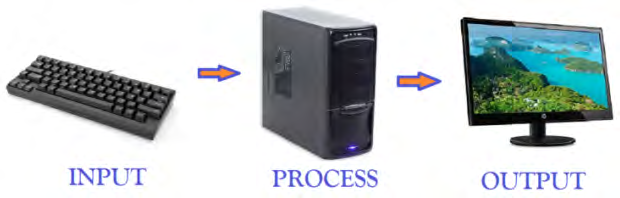
- (a) Input: the process by which the user gives data or instructions to the computer. A keyboard, a mouse, a microphone and a scanner are devices of this kind.
- (b) Processing: the data given to the computer is worked on inside the Central Processing Unit (CPU).
- (c) Output: after processing, the result reaches the user through output devices. A monitor, a speaker and a printer are examples of output devices.
Take a simple example. You type 2 + 3 on the keyboard, and that is input. The CPU adds them and gets 5, and that is processing. The monitor shows 5, and that is output.
Many students make the mistake of calling the monitor an input device. The monitor shows the result, it does not send data in. So the monitor is an output device.
Storage Devices
The work we do, and material we bring into the computer from somewhere else, is stored in the computer. Useful material stored in this way can be used again in the future. Keeping useful material in this way is called storage. The device used to store material in a computer is the hard disk. Other storage devices used for keeping material are the pen drive, optical discs such as CD and DVD, and the blu ray disc.
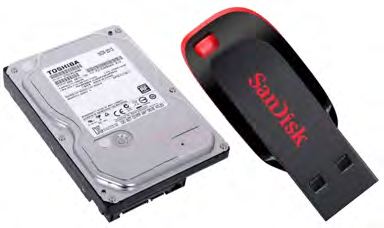
The computer programs we use, such as YouTube, Facebook and email, keep their material in very large cloud storage placed in different parts of the world.
Save a file before you close it. If you close it without saving, everything you typed is lost and you have to do it all over again.
Types of Computer
The older computers used a few years ago were mostly desktop computers. As computer technology developed, small computers were made that a person can hold in the hand and carry easily from one place to another. We call these laptops, tablets, iPads and smart phones. All of these devices work on the same working principle as a computer. That is why they are all counted as computers. They can differ in how they are built and in the programs used to run them.

| Type | Examples |
| Nonportable computers | Desktop computer |
| Portable computers | Laptop, notebook |
| Mobile computer | Tablet, iPad, smart phone |
Using a Word Processor
A word processor is a piece of software. With it we prepare a document, edit it and print it. With the same software we can store our documents electronically on the hard disk of the computer and show them on the screen. Microsoft Word, Libre Writer and Google Docs are some word processors used around the world.
How is Microsoft Word opened? Follow the steps given below one at a time.
- Step 1: Start the computer, then click the start button at the bottom left corner of the desktop, or press the Windows button on the keyboard.
- Step 2: Type the word 'word' on the keyboard. The icon of the software you are looking for appears on the right side of the computer screen.
- Step 3: Click once on that icon with the left button of the mouse.
- Step 4: When Word opens, it shows a list of files opened earlier and a set of templates. Among them, double click on blank document.
- Step 5: A blank page appears. Type whatever you want to write on that page using the keyboard.
Now the file you have typed must be stored on the hard disk of the computer so that it can be used later. This is how it is saved.
- Step 1: Click the file button at the top left of the screen.
- Step 2: Click on save as.
- Step 3: On the new screen click on 'computer' first and then click on 'browse'.
- Step 4: From the list on the left side of the box that appears, choose where the file is to be stored. For convenience, choose the desktop.
- Step 5: In the file name box at the bottom of the window, type a name for the file, for example 'my file'.
- Step 6: Last, click the save button. Now a file named 'my file' is found on the desktop. Double click on it and the file opens so that you can work on it again.
To make your document attractive you can change the font formatting and the alignment of the letters. First click at the beginning of the word, sentence or paragraph you want to change, then drag the mouse slowly in the direction you want to select. As you drag, the words appear highlighted, standing out from the rest. After that you can use the Microsoft Word ribbon to choose the font, the font size and the colour. You can also make the letters bold, italic or underlined.
Sometimes a word typed in a document has to be moved. Select what has to be moved, click the cut icon inside the home button of the ribbon, or press ctrl and X together on the keyboard. Then click where it has to go and click the paste icon, or press ctrl and V together. If the same matter has to appear in two places, use the copy icon or ctrl and C, and then paste. When you copy, the selected word stays in its old place and also appears in the new one.
Working with Tables in Microsoft Word
When a lot of information has to be set out neatly, a table is useful. This is how a table is made in a Word file.
- Step 1: Create a new Word file.
- Step 2: Click the insert tab at the top of the ribbon on the blank page.
- Step 3: Click the table icon. A grid popup showing an empty table appears.
- Step 4: Put the mouse pointer in the top left cell and move it to the right and downwards to choose as many cells as you need. A table of equal sized cells is inserted on the page.
Row: a group of cells lying across a table, from side to side.
Column: a group of cells lying up and down a table.
Cell: the place where a row and a column cross. Information, that is to say data, is typed into the cells from the keyboard.
To select the whole table, click in any one cell of it and then click the four headed arrow that appears at its top left corner. To select one row, take the mouse pointer just in front of that row. The pointer turns round and changes shape, and a click there selects the whole row. Taking the pointer just above a column does the same for a column. Click on the table you have inserted and you can choose its look from the design tab of the ribbon. From the layout tab you can change the size of the cells, use split cell to break one cell into two, and use merge cell to make two cells into one. If an extra row is needed in the middle, click insert above or insert below, and for an extra column click insert left or insert right.
Using Multimedia
Television, computers and smart phones have become a common part of our daily life. You may have seen an advertisement on television in which words and pictures are moved about in an artistic way and shown together with sound and video. When people watch an advertisement like that, they understand clearly what it is trying to show.
Multimedia: the joining together of text, pictures, sound, animation and video that we see and hear in daily life. It is used to put a subject across effectively.
As technology has developed, multimedia has come into wide use. It is used a great deal in education, in entertainment and in business. In the early grades, letters, numbers, stories, poems and songs are shown as multimedia. Material shown in this way is more effective for learning. Multimedia needs software to give artistic movement to letters and pictures and to fit sound and video together. For classroom purposes, multimedia content can be prepared using Microsoft PowerPoint. For a multimedia presentation online, Google Slides can also be used.
| Multimedia software | Use |
| Adobe Illustrator, Adobe Photoshop | Creating graphics |
| 3D Studio Max | Creating 3D animations |
| Microsoft PowerPoint | Creating Presentations |
| Macromedia Director | Authoring multimedia |
| Sound Forge | Sound editing |
| Adobe Premier | Video editing |
Creating a PowerPoint Presentation
Microsoft PowerPoint is software for preparing a multimedia presentation. Before you begin, store the subject matter and the pictures, sound and video that go with it on your computer. Then follow the steps below.
- Step 1: Start the computer and open Microsoft PowerPoint. You can also open it by pressing the start button and typing PowerPoint.
- Step 2: Choose blank presentation and a file opens with the name Presentation1. Give that file your own name and save it.
- Step 3: Click the Home tab on the ribbon and choose a slide layout from the Layout icon. Choose the Title Slide, on which a heading can be written. Click in the title box and type the heading of your subject, then type what you want in the text box below it.
- Step 4: Give the slide a theme you like. Click the Design tab on the ribbon and click on one of the themes.
- Step 5: To add a new slide, a picture, audio or video, click the Insert tab on the ribbon and browse to the place on the computer where the file is kept.
- Step 6: To choose how one slide follows another, click the Transition tab on the ribbon. If you choose push, for example, the second slide comes in as though it were being pushed up from below.
- Step 7: Before showing the presentation, save the file, click the Slide show tab and click the from beginning icon. Click with the mouse to move on to each new slide in turn.
- Step 8: To show the presentation on the full screen, press the F5 button on the keyboard. When the slide show is over, press the escape button (Esc) to come back to the earlier screen.
Using a Spreadsheet
In a school the academic records of the students are prepared on a computer and stored there. A spreadsheet is used for this.
Spreadsheet: a computer file made of many rows and columns. It is also called a worksheet or a sheet. A worksheet is one page, and a group of many pages is called a workbook.
With a spreadsheet a great deal of information or data can be arranged easily and put in order. Addition, subtraction, multiplication and percentage can also be worked out easily in it. It is used in banking to keep account records, in education to make student result files, in hospitals to keep patient records and in communication to keep records of telephone users. Google Sheets, Apple office suite and Microsoft Excel are programs of this kind.
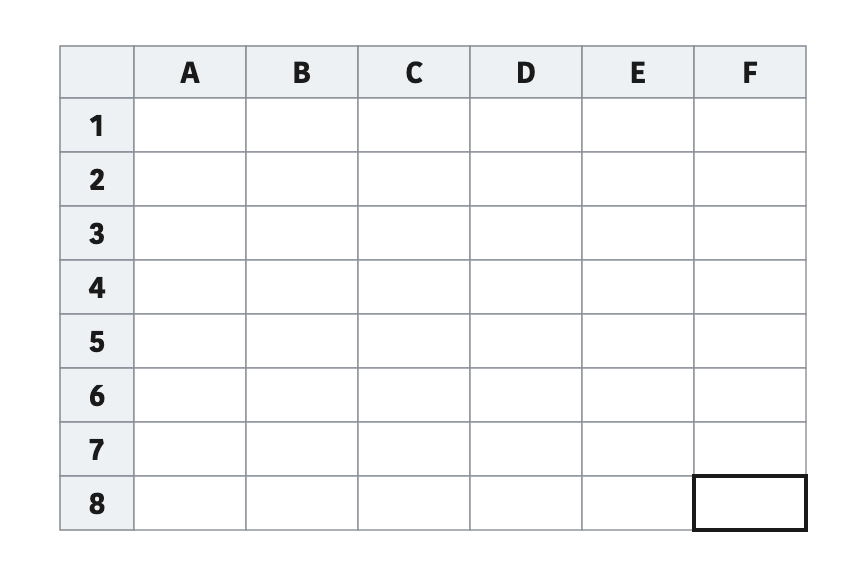
A group of cells lying across is a row. In a spreadsheet the rows are marked 1, 2, 3, 4 and so on in order. A group of cells lying up and down is a column, and the columns are marked A, B, C, D and so on in order. The place where a column and a row cross is called a cell, and data is filled into the cells. Every cell has an address that points to it. If a cell address is F8, the F in front stands for the column and the 8 after it stands for the row.
Filling, Autofilling and Sorting Data in a Spreadsheet
Filling data into a spreadsheet is easy.
- Step 1: Click once with the mouse to select the cell where the data is to go.
- Step 2: Type the words and numbers from the keyboard. You can also double click on the chosen cell and type into it.
- Step 3: After filling one cell, press the tab button to move to the next column, and press the enter button to move to the cell below in the same column.
- Step 4: Use the arrow keys on the keyboard to move to cells on the left, right, above or below, or click on the cell you need with the mouse.
Often a word filled into one cell is covered by the cell next to it, for example what is typed in cell A2 can be covered by cell B3. When this happens, take the mouse pointer to the line between column A and column B and a two headed arrow appears. Double click there and the width of the whole column changes to fit what is written in it.
Data autofill: when the data to be filled into a column or row of a spreadsheet keeps repeating, autofill is the facility that fills the rest by itself once you have typed it in one cell, without typing it again.
To autofill, take the mouse pointer to the small square at the bottom right corner of the cell where you filled the first data. A plus sign appears there. When it appears, hold the mouse button down and drag to the right along the row or down the column, and let go where the data has to stop. Sometimes numbers have to be filled into a row or column in increasing order. For that, fill 1 in the first cell, and when the same plus sign appears press the ctrl button on the keyboard. A second small plus sign appears. Now hold the mouse button down and drag downwards, and the numbers are filled in order as 1, 2, 3 and so on.
When working in a spreadsheet, data sometimes has to be put in order so that it is easy to study. Data filled into a column can be arranged in alphabetical order, and if it is numbers, in increasing or decreasing order. Follow the steps below to do this.
- Step 1: First select the column, or the data in the column, that has to be arranged. Take the mouse pointer to the top of the column to select the whole column, or drag the mouse from the start of the part you want to the end of it.
- Step 2: Click the data tab on the menu bar of the Excel ribbon. The sort option shows A to Z and Z to A.
- Step 3: Click the A to Z icon to arrange the data in increasing order, and click the Z to A icon to arrange it in decreasing order.
Try filling in the names of your classmates and the marks they scored in a spreadsheet. Select the column of names and click A to Z, and the names fall into alphabetical order. Do the same with the column of marks and the marks run from the smallest to the largest.
Word Meanings
- Automatic: something that runs by itself
- Submarine: a ship that travels both under the water and on its surface
- Local technology: simple tools built from ordinary knowledge and skill
- Drag: the act of pulling something along
- Merge: the act of joining things into one
- Insert: the act of putting something in
- Cell margin: the outer edge of a box
- Column: a group of cells lying up and down in a table
- Row: a group of cells lying across a table
The full lesson is waiting for you
The notes are free to read in full. A free account opens the rest of the practice, and tracks your progress and confidence score for every subject. Presentations and videos need approval from Learn Yeti.